The Digital Government has blocked default access to company data. As a result, accounting reports and invoices now have to be uploaded manually. To restore automatic uploads, follow the instructions from egov.uz.
Below is a step-by-step guide for our clients:
1. Download the OneID app from Google Play or the App Store
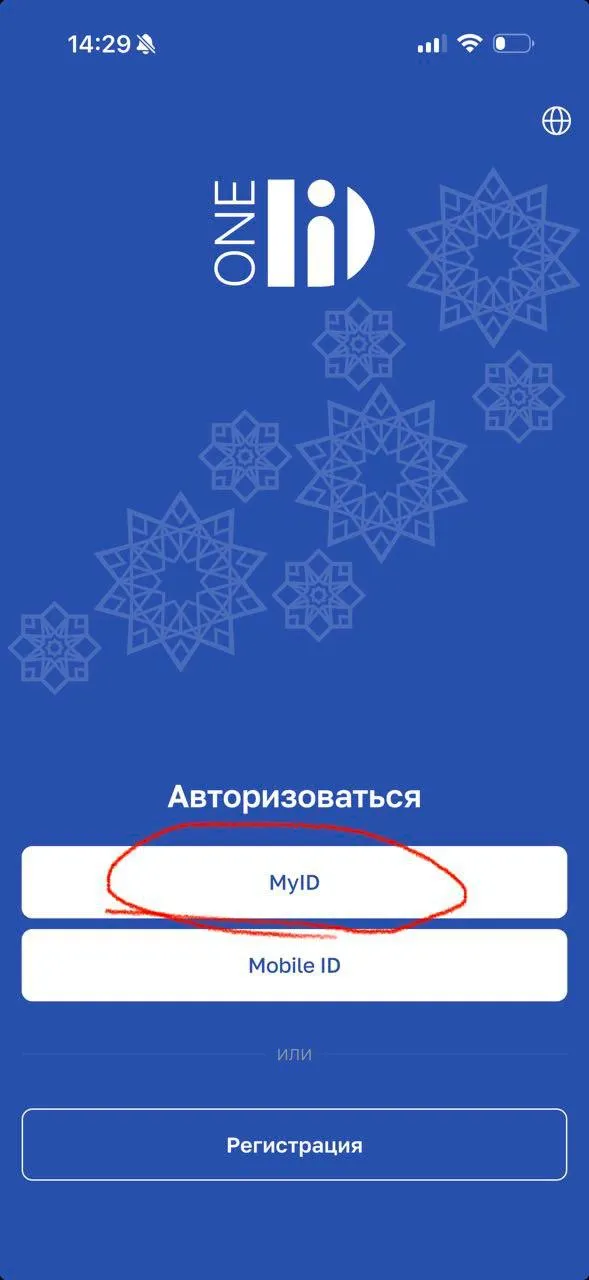
2. Log in to the app via MyID
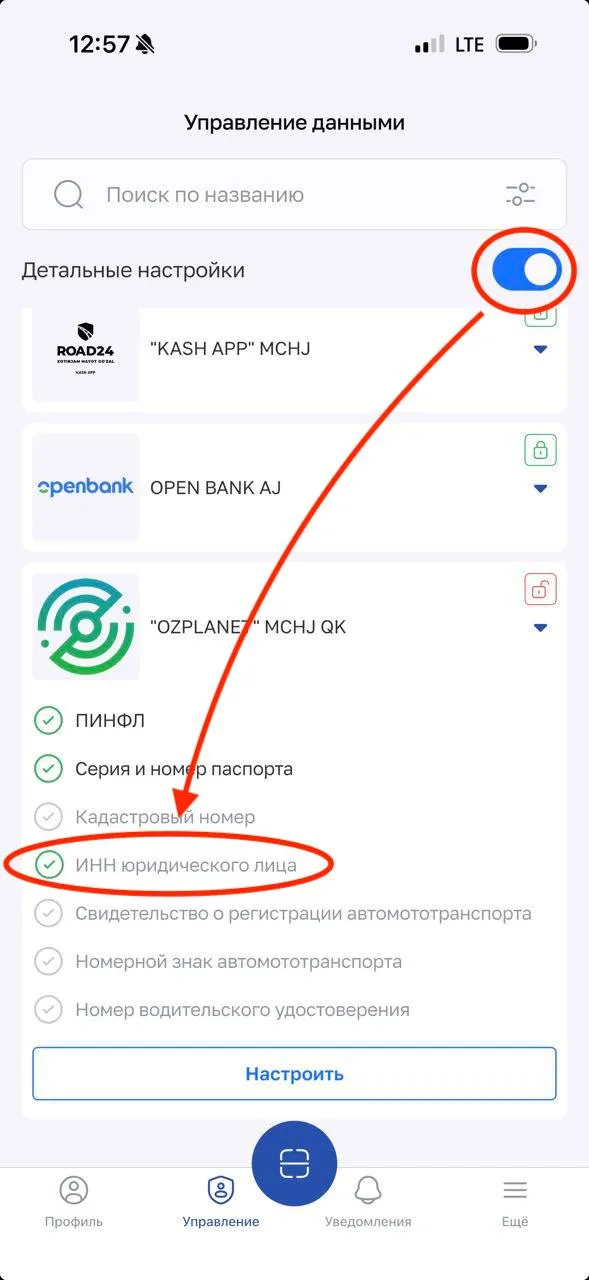
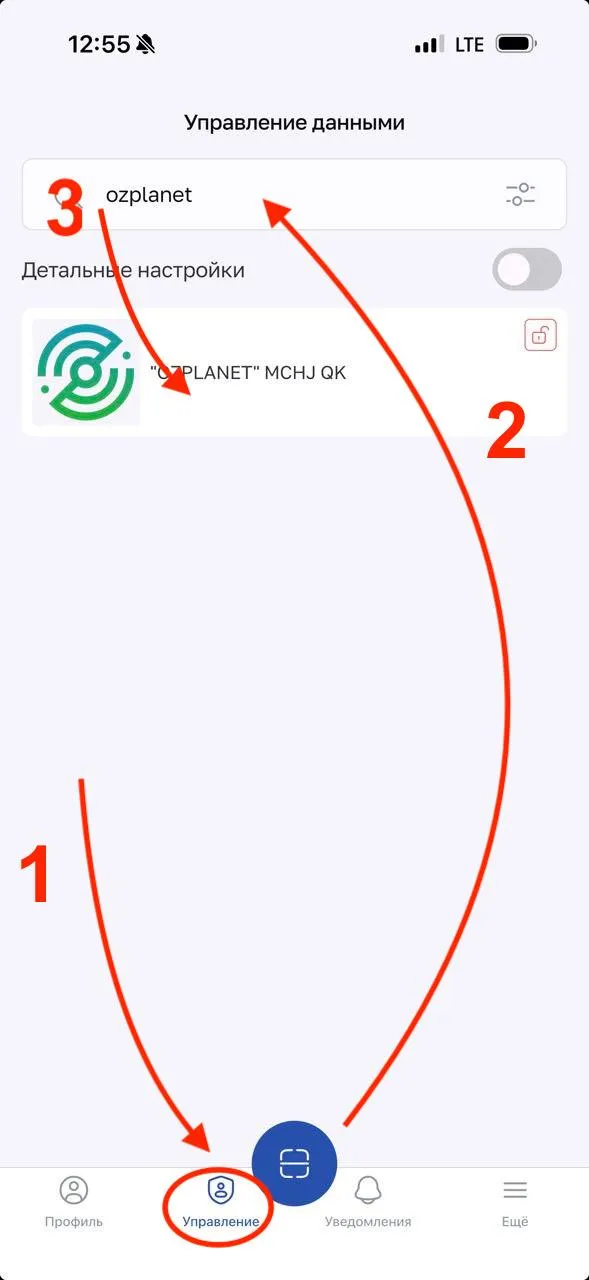
3. Go to Management → Ozplanet. Allow everything, first of all the TIN
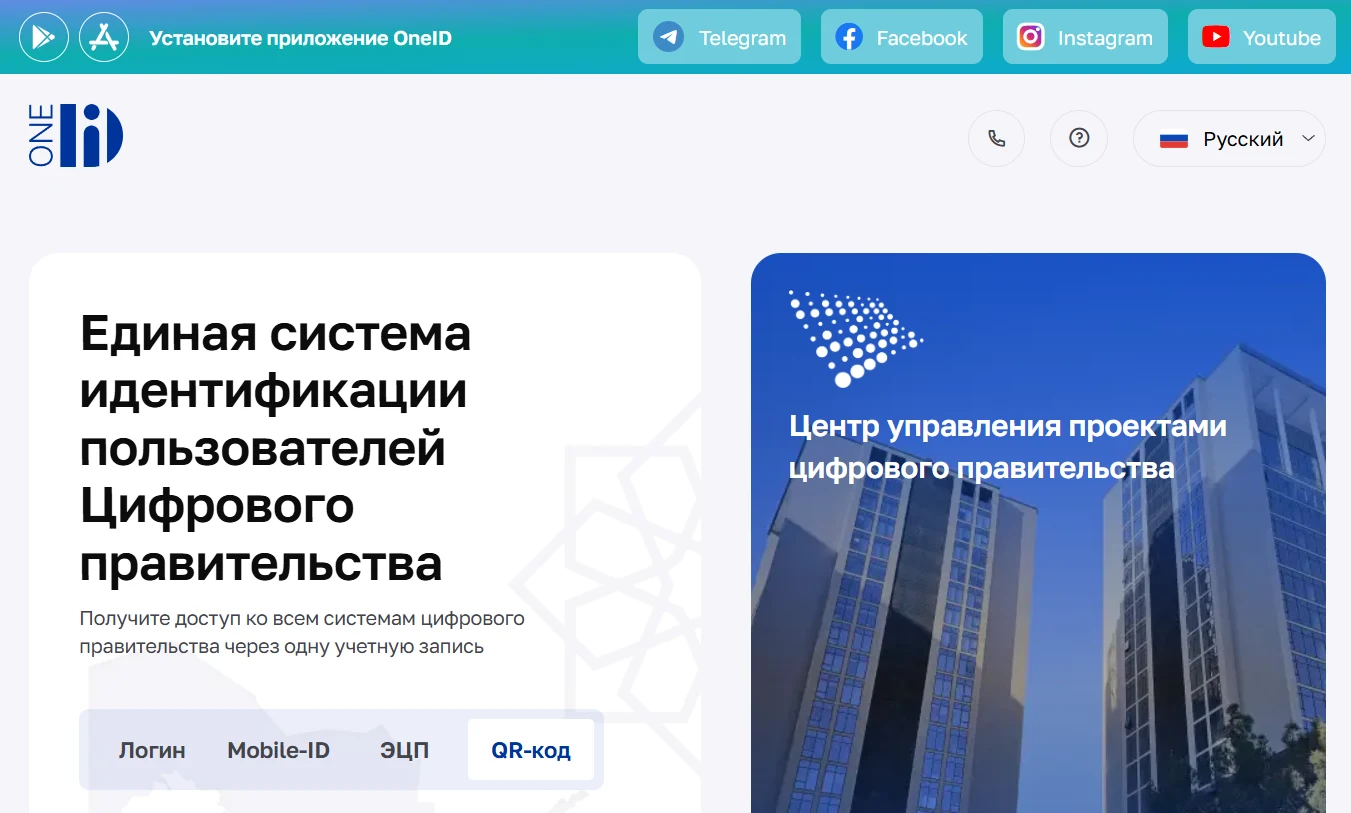
4. On your computer, open id.egov.uz and choose to log in with a QR code
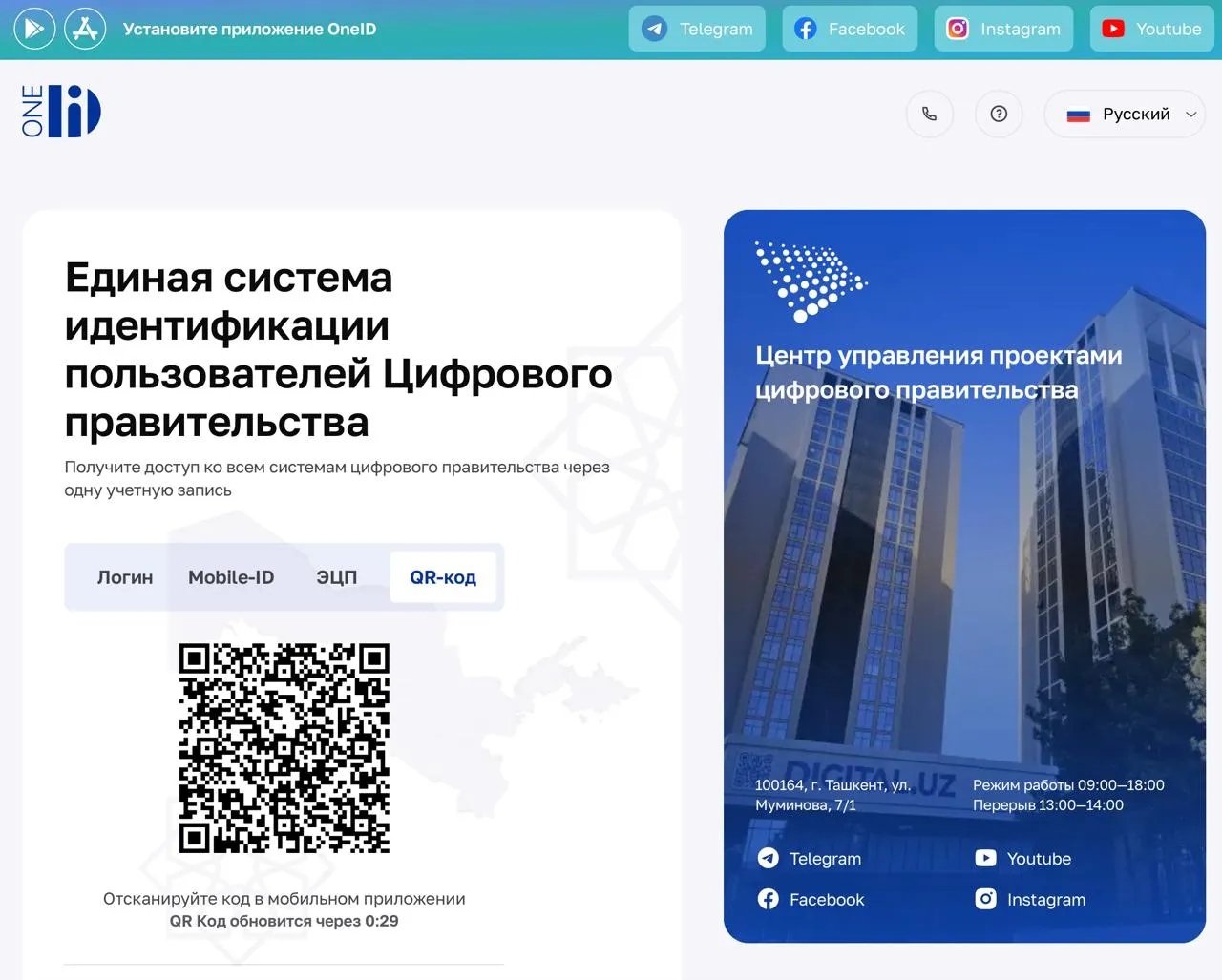
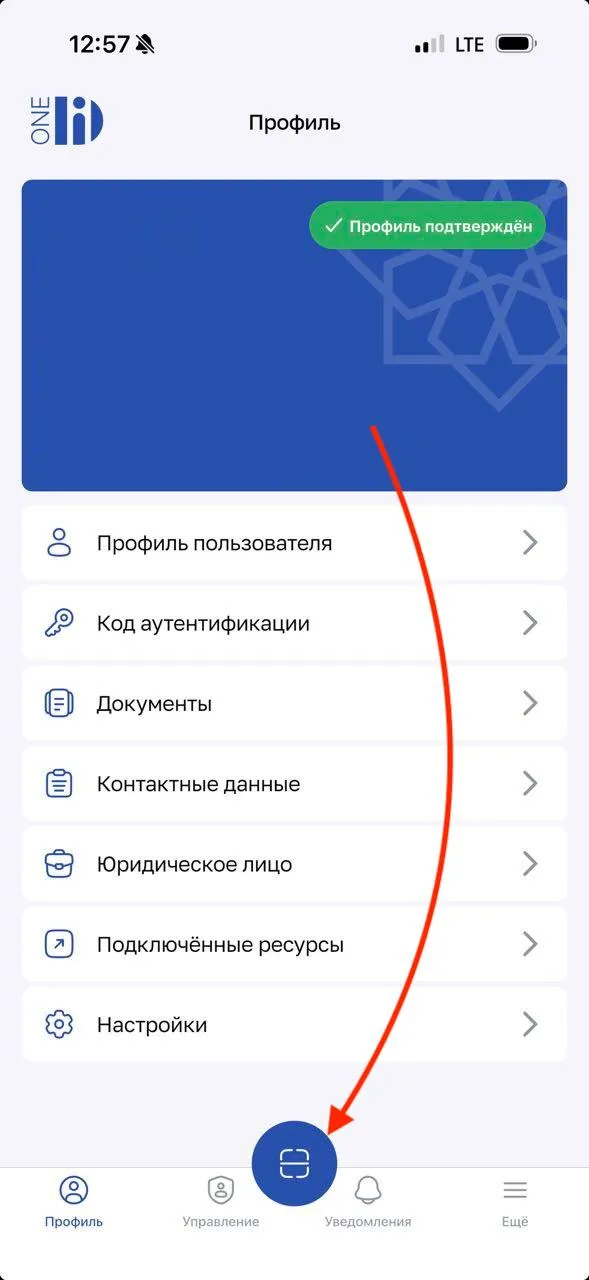
5. Scan the QR code in the OneID mobile app
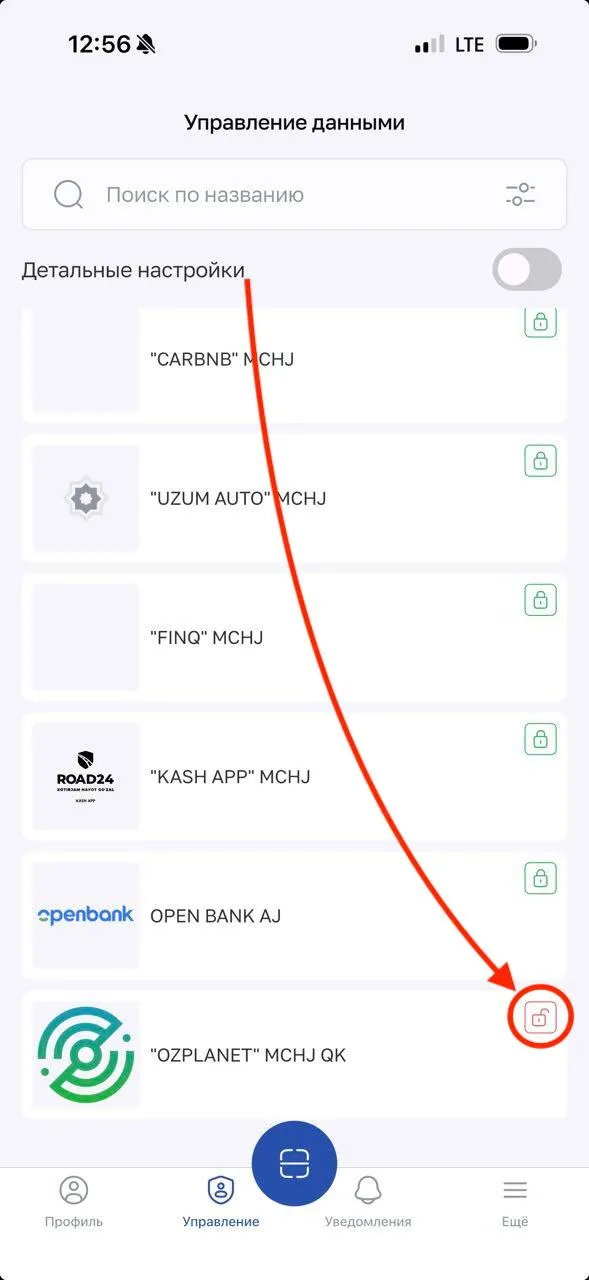
6. If everything is done correctly, the lock icon next to OZPLANET will turn red
7. The additional settings show exactly which permissions have been granted. What matters most is a green check mark next to the legal entity's TIN